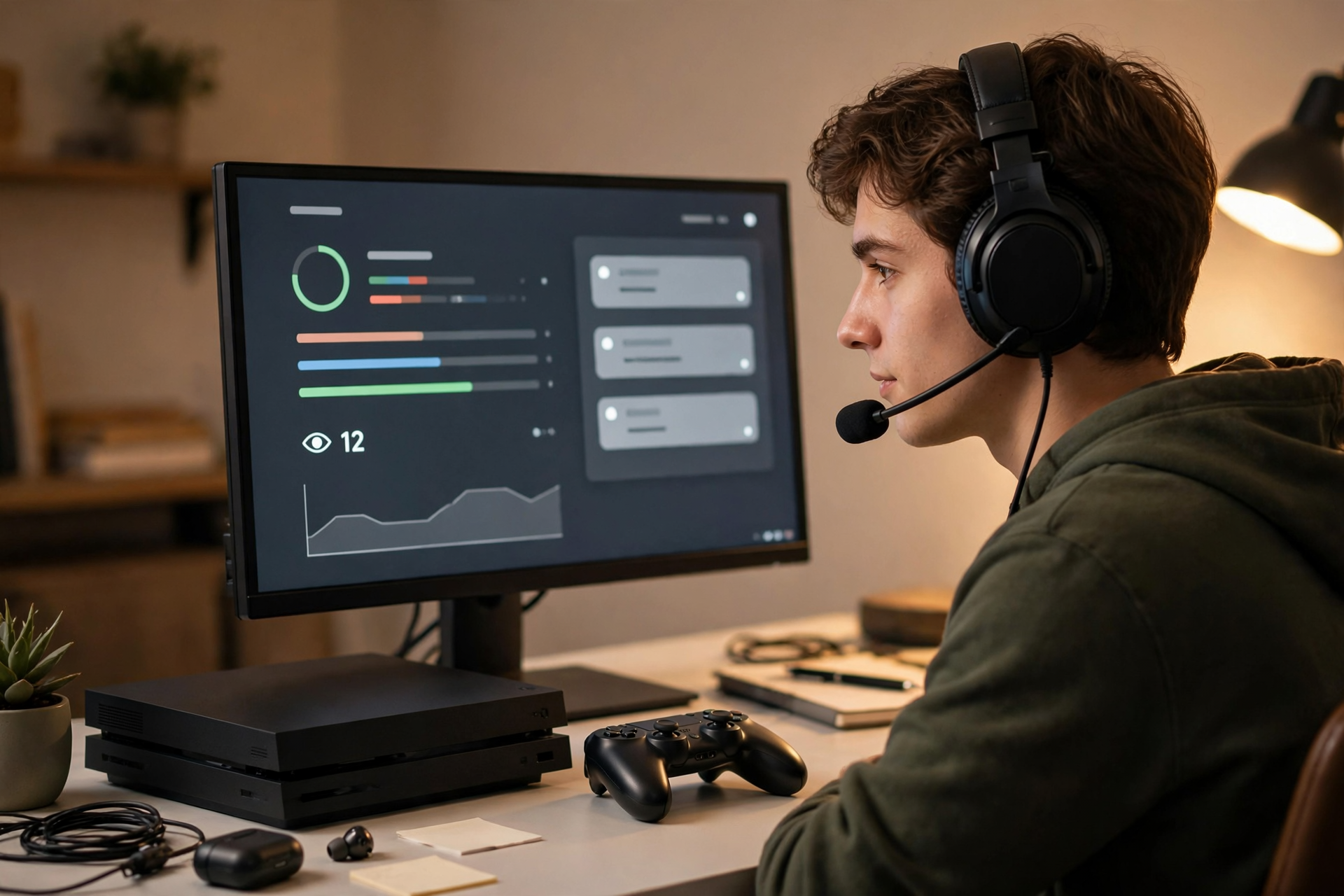
Your first Twitch stream from a console can be simple without feeling unprepared. You do not need a capture card, animated overlays, or a perfectly polished identity to begin. You need a stable connection, usable audio, a clear game objective, and a plan for what viewers will see and hear when they arrive.
Prepare the account before touching the broadcast button
Create or confirm your Twitch account, enable the available security protections, and connect it to your console through the official Twitch login flow. Finish the basic profile details before going live: choose a readable display name, add a short description of what you play, and select a profile image that remains recognizable at a small size. If you are still deciding on a name, a Twitch username checker can help you avoid obvious naming conflicts before you build around one.
Your first stream does not need a full brand package, but it should answer three questions quickly: who are you, what game are you playing, and what are you trying to do today? Write those answers in plain language. A title such as “Learning the new ranked map and testing three loadouts” gives more useful context than “First stream!!!” while still leaving room for a relaxed broadcast.
Use the console’s simplest reliable broadcast setup
Start with the console’s native Twitch broadcasting tools if they support your goal. A headset microphone, game capture, and optional camera are enough for a first session. Avoid adding a capture card, separate streaming computer, alerts, or complex scene switching until you know what problem each tool will solve. Every extra component creates another possible failure point during a debut.
Before going live, check the microphone source, headset fit, game volume, and party-chat permissions. Record a short local test if your console allows it, then listen with headphones rather than judging the setup through speakers. Your voice should be easy to understand over the game, and loud menu sounds or party members should not dominate the mix.
Protect privacy and control who can enter the stream
Review privacy settings before the broadcast, especially if you share a console with family members or use a room where personal information may appear. Hide real names, notifications, message previews, email alerts, and unrelated applications. Do not assume a game screen is private: friend lists, profile cards, map locations, and notification banners can reveal more than you expect.
Decide how you will handle voice chat before you start. If other players may be recorded, use the game’s consent and broadcast options where available, or disable their audio. Keep your own address, school, workplace, schedule, and identifying background details out of casual conversation. A quiet first stream is much easier to fix than a privacy mistake that has already been broadcast.
Give the broadcast one visible objective
Choose a single activity that can carry the session without requiring constant improvisation. You might complete a campaign mission, practice a character, test a new strategy, climb a small number of ranks, or explore a new release. The objective gives viewers a reason to understand the stream immediately and gives you something to discuss when chat is quiet.
Break that objective into a few natural checkpoints. Explain what you are attempting at the start, mention the current result after a match or mission, and state what you will try next. This is not a scripted performance; it is a simple way to prevent the broadcast from becoming a silent sequence of menus and loading screens.
Make chat interaction possible from a controller
Console streaming makes chat less convenient because you may not have a keyboard in front of you. Keep your prompts easy to answer and avoid building the whole broadcast around rapid messages. Ask viewers to choose between two options, predict an outcome, recommend one item, or explain how they approach a situation. These questions can be answered quickly without pulling you away from the game.
If you cannot read chat comfortably on the same screen, arrange a separate phone or tablet before going live and place it where you can glance at it safely between rounds. Never let checking messages distract you during a competitive match or create a view of private notifications. Acknowledge comments when you can, but do not apologize for finishing a game moment before replying.
End with a deliberate shutdown and a useful review
When you are ready to finish, tell viewers what you completed, mention one thing you learned, and state when you expect to stream again if you already know. Then stop the broadcast through the console interface and verify that it actually ended. Leaving a broadcast running on a menu or empty room can create confusing footage and unnecessary privacy exposure.
Afterward, review the recording or dashboard data with a narrow checklist. Could people hear you clearly? Was the title accurate? Did the game audio overpower your voice? Where did you become most engaged, and where did the stream lose direction? Write down three changes for the next session, not twenty. A focused first-stream review turns a basic console broadcast into a repeatable starting point.
Ready to run viewers, chatters, or followers from one dashboard?
View pricing