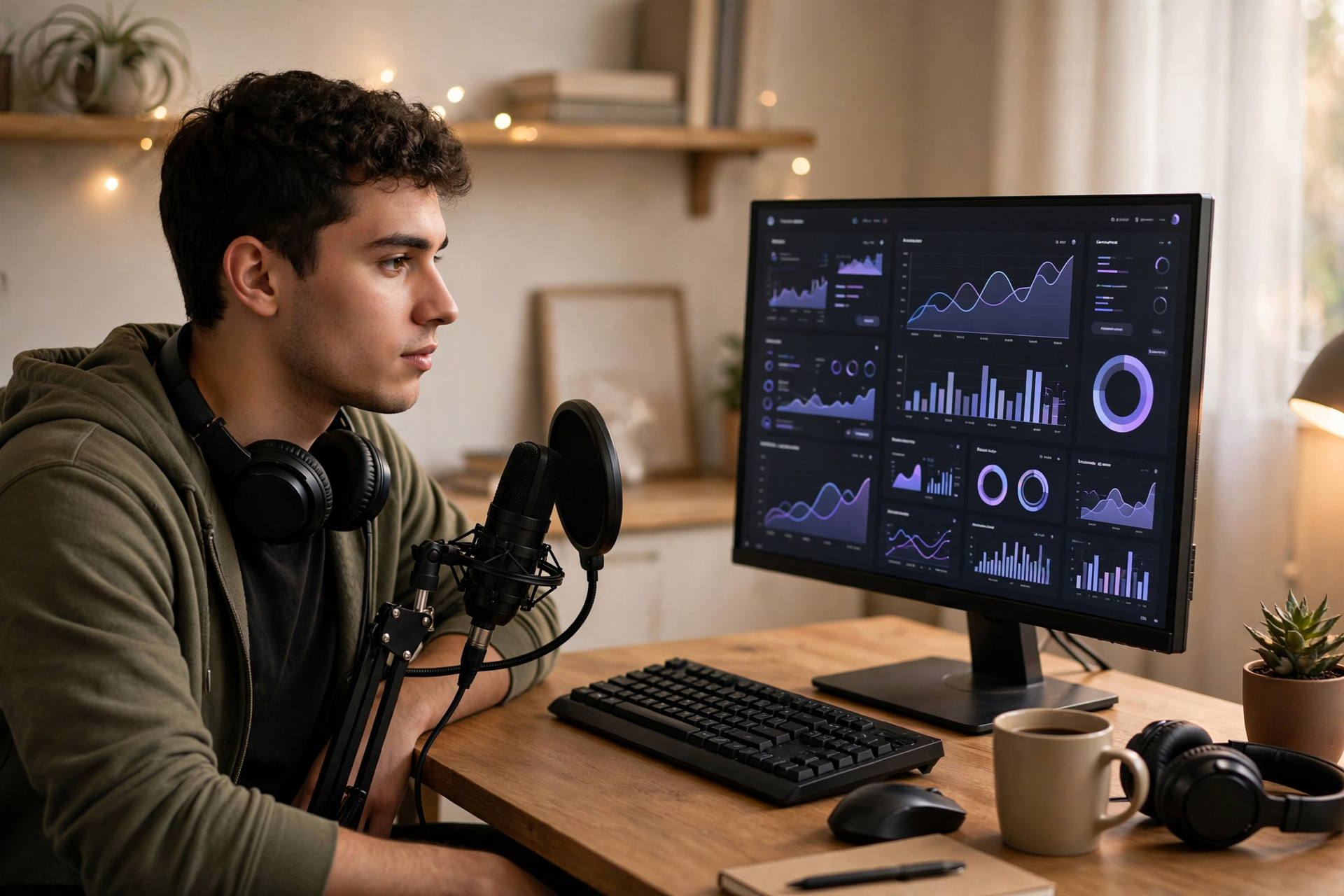
Your first Twitch stream is not a final exam. It is the first time you can observe the entire viewer journey: what someone sees before entering, how quickly they understand the broadcast, whether the audio and visuals feel comfortable, and what tells them the stream has ended. Build the broadcast around those checkpoints, and you will finish with useful evidence instead of vague nerves.
Define the one experience you are testing
Choose one simple viewer experience for the first broadcast. It might be watching you complete a game mission, explain a creative process, or work through a small challenge. Avoid combining several categories, unrelated activities, and ambitious production ideas in the same debut. A narrow promise makes it easier to notice where the stream becomes confusing.
Write the promise in one sentence before opening your software: “Today I am showing ___ while I ___.” Use that sentence to choose your Twitch category, stream title, thumbnail or starting screen, and opening explanation. If the activity changes later, update the title and category so the public information still matches what is happening.
Prepare the channel as a visitor would see it
Before going live, open your channel page in a private browser window or ask a trusted person to check it. Look for a recognizable username, readable profile image, short description, and panels that answer basic questions: what do you stream, when might you return, and what should a new viewer expect? Do not spend hours decorating every panel; prioritize clarity over completeness.
Check the public-facing details that are easy to overlook. Confirm your language, category, title, tags, content labels, and chat rules. Remove personal information from panels and scene sources, and check that alerts or browser windows cannot reveal private messages, email addresses, or unrelated tabs.
Build three broadcast states instead of a complicated layout
For a first stream, three reliable states are enough: a starting screen, the main content scene, and a closing screen. The starting scene gives you time to confirm audio and prepare; the main scene carries the broadcast; the closing scene tells viewers that the stream is finished. Keep transitions easy to trigger so you are not searching through menus while live.
Test each source at the size viewers will see it. Your voice should remain understandable over the game or application, your camera should not cover important information, and desktop notifications should be disabled. Record a short local test and watch it with headphones. A setup that feels fine while monitoring yourself can still produce clipped audio, echo, black capture areas, or unreadable text.
Give the first five minutes a clear shape
Start with a short orientation rather than a long biography. State what you are doing, what the immediate objective is, and how a viewer can follow along even if they arrived late. Then begin the activity quickly. A new viewer should not have to wait through several minutes of menus, silent preparation, or unexplained inside jokes.
Prepare two or three sentences you can repeat whenever the stream feels quiet: what has happened, what you are attempting now, and what could happen next. This is not a script for every word. It is a reset point that keeps the broadcast understandable when you lose your place, restart an activity, or notice that chat has gone silent.
Use a zero-chat protocol
Assume nobody will type for long stretches. Narrate decisions, explain visible changes, and describe the next action without demanding responses. Instead of repeatedly asking “How is everyone doing?”, give viewers something concrete to understand: why you chose an approach, what you are comparing, or what condition would make you change plans.
When someone does speak, acknowledge the message naturally and connect it to the activity. Avoid stopping the entire broadcast for every greeting, but do not ignore useful contributions either. If chat becomes active, let the conversation influence your commentary while keeping the main objective visible for people who are watching quietly.
Create a recovery plan for predictable mistakes
Decide in advance what you will do if the game crashes, the capture disappears, the microphone stops working, or you make a mistake on camera. Move to the starting or holding scene, explain that you are fixing the issue, and use a short checklist: confirm the correct window, inspect the audio meters, check the selected microphone, and verify that private notifications remain hidden.
Do not try to conceal every problem. Calmly naming a technical issue gives viewers context and prevents a silent frozen image from looking like the stream has ended. If the problem cannot be fixed quickly, end the broadcast cleanly rather than extending frustration. A controlled stop is more useful than improvising through a broken setup.
End with a deliberate handoff to your next test
Give the stream a visible finish. Summarize what you completed, mention one thing you learned, and state what you would change next time. Thank people for watching, then switch to the closing scene before ending so anyone still connected receives a clear signal rather than an abrupt disappearance.
Afterward, review the recording or dashboard evidence while the experience is fresh. Note the first moment the stream became easy to understand, any section that dragged, audio or framing problems, and questions viewers asked more than once. Change only a few variables before stream two—such as the opening, microphone level, or scene layout—so you can tell which improvement actually helped.
Ready to run viewers, chatters, or followers from one dashboard?
View pricing