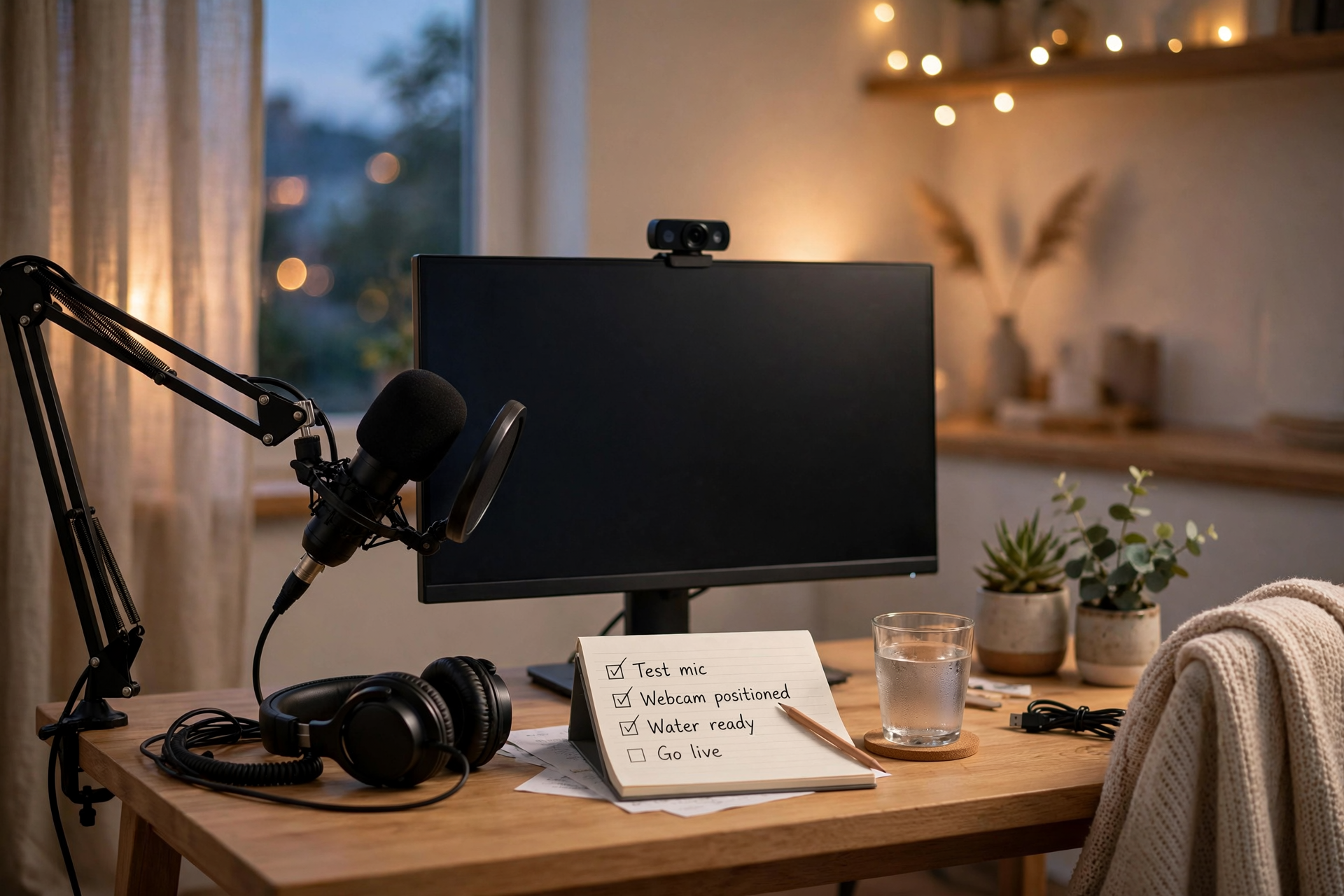
Your first Twitch stream is not an audition you either pass or fail. It is a live systems test: can your microphone be understood, can your scenes change cleanly, can you explain what is happening, and can you recover when something breaks? Treating the broadcast as a technical dress rehearsal gives you a useful goal beyond chasing a viewer count.
Define what a successful first stream means
Choose three pass conditions before you go live. For example: your voice remains clear for the entire broadcast, the main activity is visible without confusing layout changes, and you finish with notes about what to improve. These goals are measurable and within your control, unlike an arbitrary follower or viewer target.
Give the stream one simple operating idea, such as testing a new game, building a small project, reviewing a topic, or completing a specific challenge. You do not need a complex show concept, but you do need something that gives you a next action when chat is quiet. If your topic needs a category decision, review how to pick a category on Twitch before publishing the stream.
Build a setup that fails gracefully
Use the fewest moving parts possible for the debut. One primary scene, one backup scene, one microphone, and one source for your main activity are easier to troubleshoot than a collection of alerts, widgets, transitions, and browser panels. Put your streaming software, game or activity, and Twitch dashboard where you can reach them without covering important controls.
Prepare fallbacks before the broadcast starts. Know how you will continue if the game crashes, the webcam stops working, or a browser source fails. A static holding scene, a short offline message, and a nearby note containing your restart steps can turn a five-minute problem into a minor pause instead of the end of the stream.
Test audio before you worry about visuals
Record a short local sample while speaking at your normal streaming volume. Listen for fan noise, keyboard spikes, clipping, echo, and a game track that overwhelms your voice. Adjust the microphone position and gain first, then set the other sources around it. Viewers can tolerate a basic layout much more easily than speech they cannot understand.
Run a second test while performing the actions you expect to use live: launching the game, switching windows, playing a video, or reading a prompt. Watch for sudden volume changes and confirm that your microphone remains active after every transition. If possible, monitor the broadcast from a separate device with its sound muted so you can check the viewer experience without creating an audio loop.
Write a small run sheet, not a full script
Create a one-page run sheet with five checkpoints: opening context, first activity, progress update, recovery option, and closing. Under each checkpoint, write one sentence describing what viewers should understand. This keeps you oriented without forcing you to read scripted lines or fill every silence.
Plan a context reset for anyone who arrives late. Every so often, briefly state what you are doing, what has happened so far, and what you are attempting next. That explanation helps new viewers enter the stream while also giving you a reliable prompt when the conversation stalls.
Use a calm incident procedure while live
When something breaks, say what viewers need to know and take the simplest corrective action. For example: “The game window disappeared, so I’m switching to the backup scene while I restart it.” This prevents a silent screen from becoming confusing and gives you permission to focus on the fix instead of apologizing repeatedly.
If the issue cannot be solved quickly, move to your fallback activity rather than improvising technical repairs indefinitely. You might answer a prepared topic, review what you have completed, or explain your next attempt. Keep private account details, stream keys, personal notifications, and unrelated browser tabs off the capture area throughout the process.
Review evidence before changing everything
After ending, write down observations while they are fresh: when your voice felt most natural, where you lost your place, which scene changes were awkward, and what technical issue consumed the most attention. Then watch a short opening sample, a middle section, and the ending. You are looking for repeatable problems, not judging your entire personality from one broadcast.
Choose only one technical improvement and one presentation improvement for the next stream. Examples include moving the microphone closer, removing a distracting overlay, adding a clearer opening sentence, or preparing two more backup prompts. A controlled iteration gives you better information than rebuilding the channel after a single debut.
Ready to run viewers, chatters, or followers from one dashboard?
View pricing