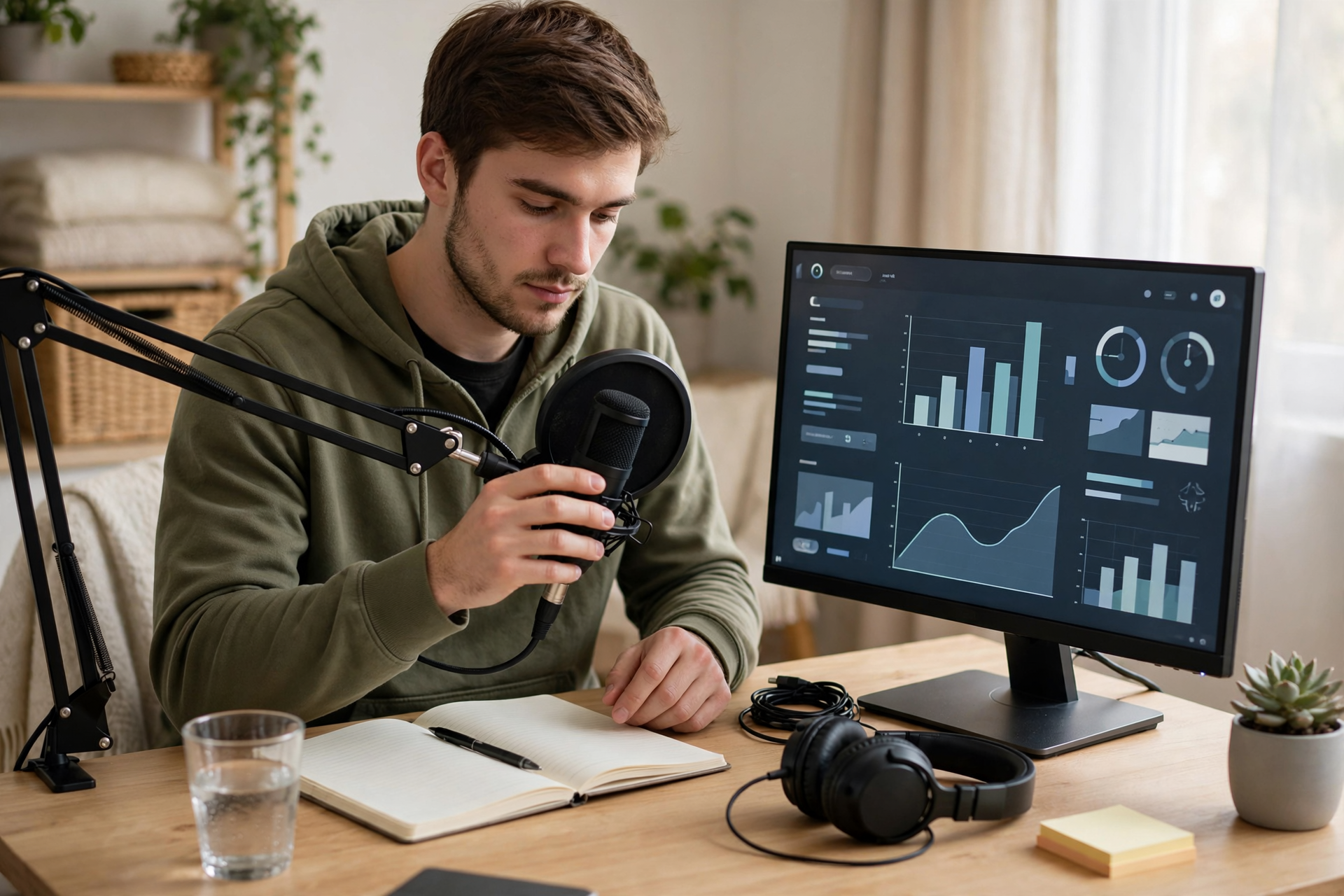
Your first Twitch stream does not need a perfect overlay, expensive camera, or packed chat. It needs a clear idea, reliable audio, a tested broadcast setup, and enough structure to help you stay comfortable when the first few minutes are quiet. Treat the stream as a small live show and a technical rehearsal at the same time.
Choose a simple first-stream format
Pick one activity that can carry the entire broadcast without constant explanation. A beginner-friendly game, drawing session, music practice, coding project, or Q&A can all work, but avoid combining several unrelated ideas on day one. Write a one-sentence promise before you go live: “I am learning this game from scratch,” “I am building a small project,” or “I am testing three unusual strategies.” That sentence gives visitors an immediate reason to understand the stream.
Set a realistic runtime rather than promising an all-day broadcast. Sixty to 120 minutes is enough to learn how your software behaves, practice speaking, and identify technical problems. Create two or three simple milestones for the session, such as completing a challenge, testing a feature, or answering a set of questions. Milestones give you something to discuss when chat is slow and make the stream easier to title and describe.
Prepare your Twitch channel before going live
Complete the basic channel details before your first broadcast: choose a readable username, upload a recognizable profile image, write a short bio, and add any relevant social or community links. Keep the bio specific enough to set expectations. “Casual strategy games and beginner-friendly experiments” is more useful than a generic promise to stream anything. Check your category, language, title, and tags immediately before starting because these details help the right visitors understand what they have found.
Decide what information you want visible during the stream and what should stay private. Hide desktop notifications, close personal tabs, remove saved passwords from view, and disable apps that could reveal private messages. Configure moderation basics before your first audience arrives, including AutoMod settings, blocked terms, chat verification options, and a trusted moderator if someone you know is available. A few minutes of privacy and safety preparation can prevent an avoidable first-stream crisis.
Build and test a dependable broadcast setup
Use broadcasting software such as OBS Studio and start with only the scenes you need: a live scene, a starting screen, and a brief ending screen. Add your game or main content source, microphone, and optional camera one at a time. Keep overlays restrained; large alerts and animated panels can distract from the content and make performance problems harder to diagnose. If your computer struggles, prioritize a stable game capture and clean voice over camera quality or decorative effects.
Audio deserves more attention than appearance. Speak at a normal volume while watching the microphone meter, then listen to a short local recording through headphones. Your voice should be clearly above game audio, with no fan rumble, keyboard spikes, echo, or clipping. Run a private test or record several minutes before the real broadcast, checking the scene transitions, capture source, alerts, and internet stability. A test catches problems while they are still easy to fix.
Plan the first ten minutes
Do not begin by waiting silently for viewers. Start with a short welcome, explain what you are doing, and state the first milestone. If you are playing a game, describe your goal and the decision you are about to make. If you are making something, show the starting point and explain what success will look like. This gives early visitors context even if they arrive halfway through the opening.
Prepare a small list of conversation prompts that do not require an immediate chat response. Talk through your choices, mention what you are learning, compare possible approaches, and react to visible events. Ask questions that can be answered easily, such as “Which option would you choose?” rather than demanding a detailed introduction from a quiet viewer. Keep an eye on chat, but let the activity remain watchable when nobody is typing.
Run the broadcast like a live rehearsal
Before clicking Go Live, confirm the title, category, tags, microphone source, and privacy settings. Start the stream a few minutes early if you need time to verify that the correct scene and capture source are visible. Once live, avoid repeatedly apologizing for being new or for having a small audience. Viewers usually respond better to calm narration and genuine curiosity than to constant commentary about the viewer count.
Use a loose rhythm during the session: explain the next action, do it, react to the result, and summarize what you learned. Check your dashboard occasionally for dropped frames or audio warnings, but do not let analytics interrupt the show every few seconds. If something breaks, tell viewers what you are fixing, switch to a prepared scene if necessary, and solve one problem at a time. A composed recovery is part of the first-stream experience.
Review the stream and improve one thing
When you finish, give viewers a clear closing moment instead of disappearing immediately. Summarize what happened, mention when you expect to stream again if you know, and thank anyone who participated. End the broadcast from your software and confirm that your microphone and camera are no longer active. Then write down what went well, what failed, and which moments felt easiest to talk through while the experience is still fresh.
Review a short section of the recording rather than forcing yourself to watch every minute. Check voice clarity, game-to-mic balance, dead air, confusing transitions, and moments where the stream lacked direction. For your second broadcast, change only one or two major variables, such as improving lighting, shortening the opening, or adding a clearer goal. Consistent small improvements create a more sustainable Twitch channel than rebuilding the entire setup after every stream.
Ready to run viewers, chatters, or followers from one dashboard?
View pricing