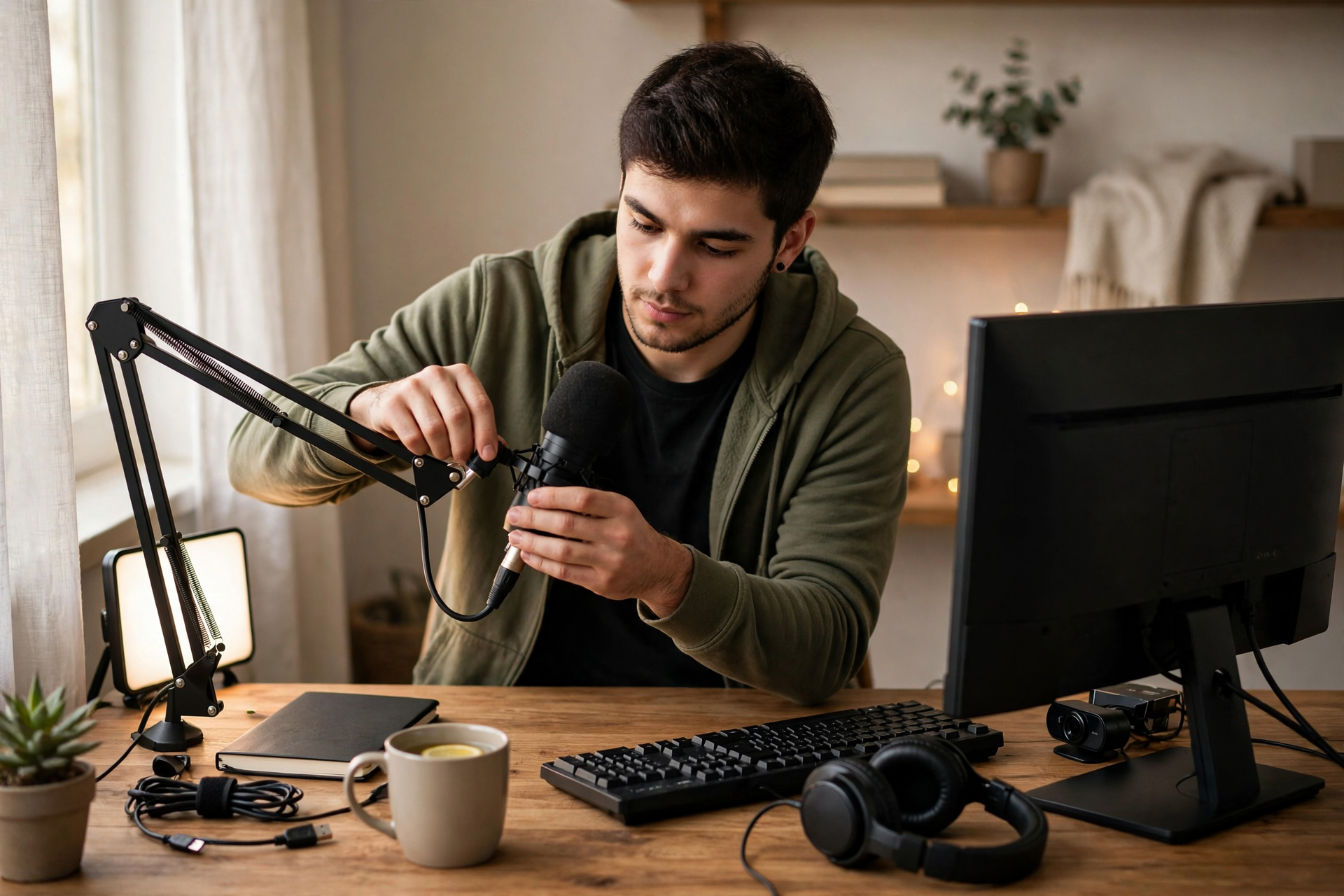
Your first Kick stream does not need to look like a professional broadcast. It needs a clear idea, reliable audio, a tested connection, and enough structure to help viewers understand what they are watching within the first few minutes. Treat the debut as a live rehearsal with real audience feedback, not as a final exam.
Decide What Your First Kick Stream Is About
Choose one main activity for the broadcast instead of trying to introduce every type of content you might make. A specific plan such as “ranked matches with beginner-friendly commentary,” “building a budget PC,” or “a relaxed Q&A for new creators” gives visitors an immediate reason to stay.
Write a small run-of-show before you go live. Include an opening greeting, two or three topics or segments, a short break point, and a clear ending. This prevents long silent gaps and gives you something to return to when chat is quiet.
Prepare Your Kick Channel Before Going Live
Complete the basic channel details that a first-time visitor will see: profile image, bio, category, title, and any panels or social links you actually want to maintain. Keep the title accurate and specific rather than using broad labels such as “Come hang out.” Viewers should know the activity, goal, or mood before clicking.
Set expectations for the room in a few simple lines. A short chat rule list, your usual language, and an indication of how you want people to participate are enough at the beginning. If you already know a trusted person who can help watch chat, discuss moderation responsibilities before the stream rather than improvising them live.
Connect OBS and Configure the Essential Settings
Install OBS Studio, then connect it to Kick using the stream key and server information shown in your Kick creator dashboard. Create at least two scenes: a live scene containing your game or camera, and a starting scene that tells viewers you are about to begin. Add your microphone and desktop or game audio as separate sources so you can adjust them independently.
Do not spend your first day chasing elaborate overlays. Prioritize a voice that is easy to hear, a stable video source, and an uncluttered layout. Use a sensible output resolution and frame rate for your computer and upload speed, then record a short local test in OBS to check for muted audio, delayed microphones, cropped cameras, or unreadable alerts.
Run a Pre-Stream Check
About 15 minutes before the broadcast, close unnecessary applications, pause large downloads, and confirm that your camera, microphone, headphones, and lights are working. Check the title and category one more time, open your chat window where you can see it, and keep a backup plan ready in case your main game or activity fails.
Start with a brief test broadcast if your setup or account workflow supports one, or use another recording to verify the final scene. Watch for dropped frames and listen for audio conflicts such as game sound overpowering your voice. A quick checklist is more valuable than repeatedly changing settings without measuring the result.
Make the First Fifteen Minutes Easy to Follow
Begin with a direct welcome and explain what is happening today in one or two sentences. Introduce yourself, state the stream goal, and start the activity quickly. If someone enters while you are already underway, repeat the context naturally every so often so late arrivals do not feel lost.
Keep talking even when chat is slow by explaining decisions, reacting to progress, or answering questions you expect a new viewer to ask. Avoid demanding follows or apologizing for a small audience. Ask focused questions instead, such as which strategy to try next, because specific prompts are easier to answer than “How is everyone doing?”
End the Broadcast and Use the Replay
Give viewers a clear closing signal instead of stopping abruptly. Mention the most useful moment from the stream, say when you expect to return if you have a realistic plan, and thank people who participated. If the stream went poorly technically, end calmly after explaining that you will fix the issue rather than turning the final minutes into a troubleshooting session.
Afterward, review the recording or notes while the experience is fresh. Mark the exact points where audio dipped, conversation stalled, or the activity became confusing. Keep one or two improvements for the next broadcast—such as a better microphone level or a tighter opening—so each stream becomes easier without turning preparation into an endless production project.
Ready to run viewers, chatters, or followers from one dashboard?
View pricing