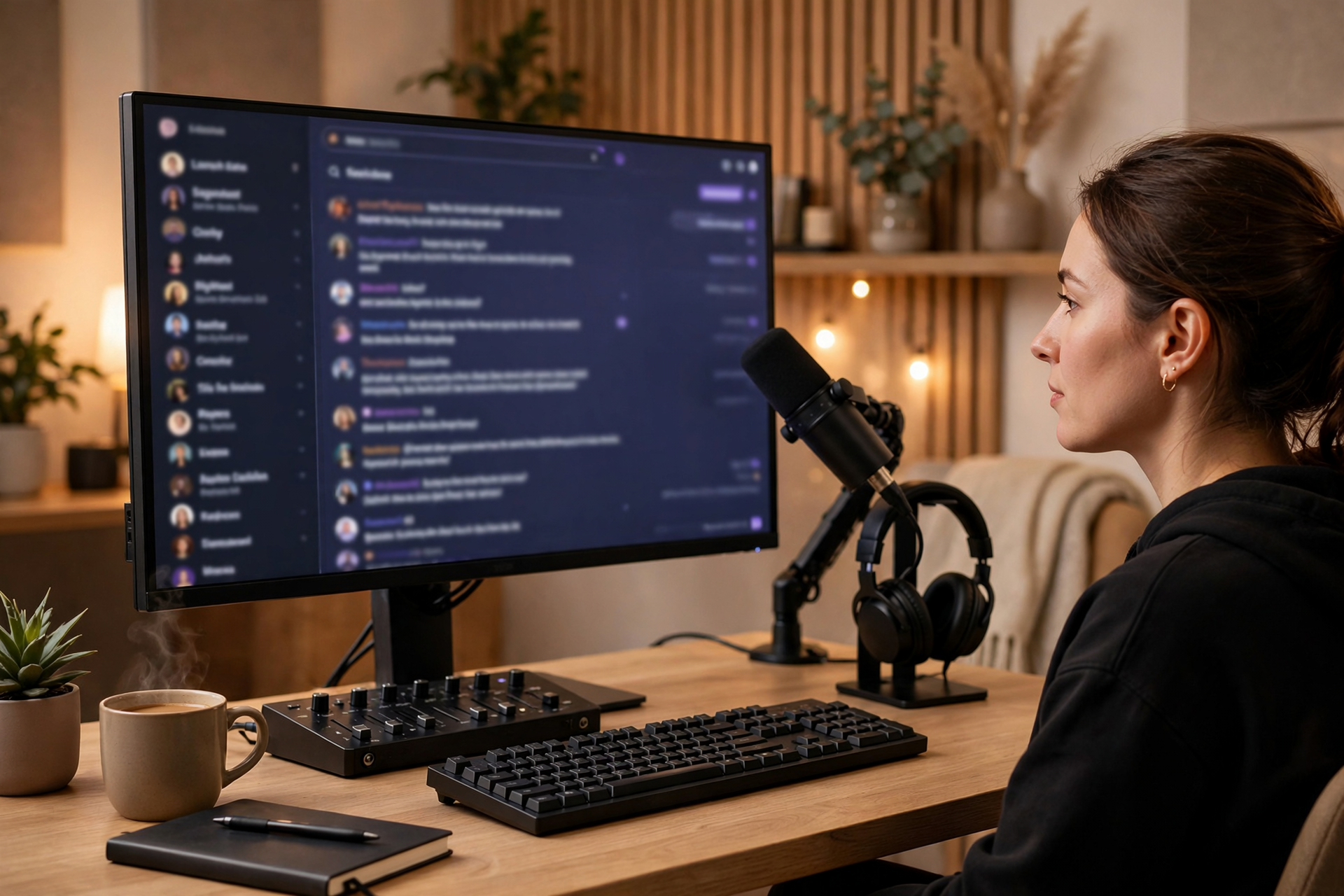
A quiet Twitch chat is not always a community problem. Sometimes viewers want to participate, but your layout makes messages difficult to notice, your microphone hides their comments, or the stream gives them no clear opening to speak. A chat-first setup removes those obstacles before you add more prompts or interactive features.
Treat chat as part of the broadcast, not a separate window
Start by deciding where chat belongs in your attention system. Keep a readable chat panel close enough to your gameplay or main content monitor that you can scan it without repeatedly turning away. If you use a single monitor, test a compact pop-out window or a docked panel that stays visible without covering important controls.
Do not make chat the only thing on screen for viewers. Your layout should still prioritize the game, creative work, or conversation that brought people in. The goal is to make messages easy for you to catch and easy for viewers to understand when you respond, not to turn the broadcast into a wall of scrolling text.
Fix the audio gap between a message and your response
Viewers participate more readily when they can tell that messages are being heard. Check your microphone level against game, music, and alert volume so a response does not disappear under the broadcast mix. A simple test is to record five minutes while speaking at your normal energy, then listen on headphones and a phone speaker.
When you read a message aloud, give it enough space to be understood. Avoid replying while a loud effect, cutscene, or teammate is speaking unless the moment requires immediate attention. If you miss a comment, say so plainly and invite the viewer to repeat it. That small recovery is better than pretending you saw something and answering the wrong question.
Build visual states that show when chat has influence
Chat feels more valuable when viewers can see what their messages changed. Use simple scene elements such as a current objective, a decision tracker, a queue status, or a recently selected option. These do not need to be elaborate overlays; even a small browser source or manually updated panel can show that participation has a visible result.
Limit the number of elements competing for attention. If your stream contains alerts, goals, animated widgets, captions, and several chat boxes, messages can become visual noise. Choose one or two places where participation appears, then keep their position and meaning consistent across scenes so viewers learn how the broadcast responds to them.
Make your response style easy to recognize
A message does not always need a long answer, but it should receive a clear response when possible. Try a repeatable sequence: acknowledge the person, answer the useful part, and connect it to what you are doing next. For example, you might say a viewer’s name, explain why you chose a particular strategy, and then narrate the next attempt.
Avoid turning every response into an interview. Rapid-fire questions can make chat feel like work, especially for viewers who are still deciding whether they belong in the room. Mix direct replies with observations, short explanations, and occasional pauses that allow someone else to enter naturally. A calm pace often produces better conversation than constant verbal prompting.
Design scenes for different chat conditions
Your opening scene, active gameplay scene, and closing scene do not need the same layout. During a focused task, keep your chat monitor and audio cues especially clear because you may have fewer opportunities to look away. During setup, transitions, or breaks, give yourself a larger view of chat so you can catch new arrivals and answer without interrupting the main activity.
Prepare a low-pressure scene for moments when the main content is paused. It might show your current objective, a useful status update, or what happens next. This prevents the stream from feeling abandoned while you read messages, solve a technical issue, or change games. Label each scene by its job rather than by appearance so you can switch quickly when the broadcast changes pace.
Remove friction without lowering your standards
Review your chat settings and moderation tools before going live. Clear rules, sensible AutoMod choices, and trusted moderators help new participants understand the room without making regular conversation feel policed. If you use follower-only, slow mode, or other restrictions, apply them for a specific reason and explain the change briefly when they affect normal participation.
Give viewers lightweight ways to communicate when a full message feels like too much effort. Reactions, emotes, polls, channel point redemptions, and short choices can help a quiet room get moving, but they should support the stream rather than replace conversation. Keep only the features you can monitor and respond to consistently; unused interaction tools teach viewers that their input disappears.
Measure conversation quality, not only message volume
After each stream, review a few practical signals: unique chatters, messages per active hour, the timestamps of conversation spikes, and the moments when chat went silent. Compare those points with your scenes, game activity, audio changes, and breaks. You are looking for conditions that make participation easier, not a single number to chase.
Run one layout or hosting change at a time for several broadcasts. Move the chat panel, adjust the audio mix, shorten a transition, or add one visible participation state, then compare the result with similar streams. If more viewers speak but the conversation becomes difficult to follow, improve moderation and response pacing next. A healthy chat is readable, safe, and connected to the content—not merely busy.
Ready to run viewers, chatters, or followers from one dashboard?
View pricing