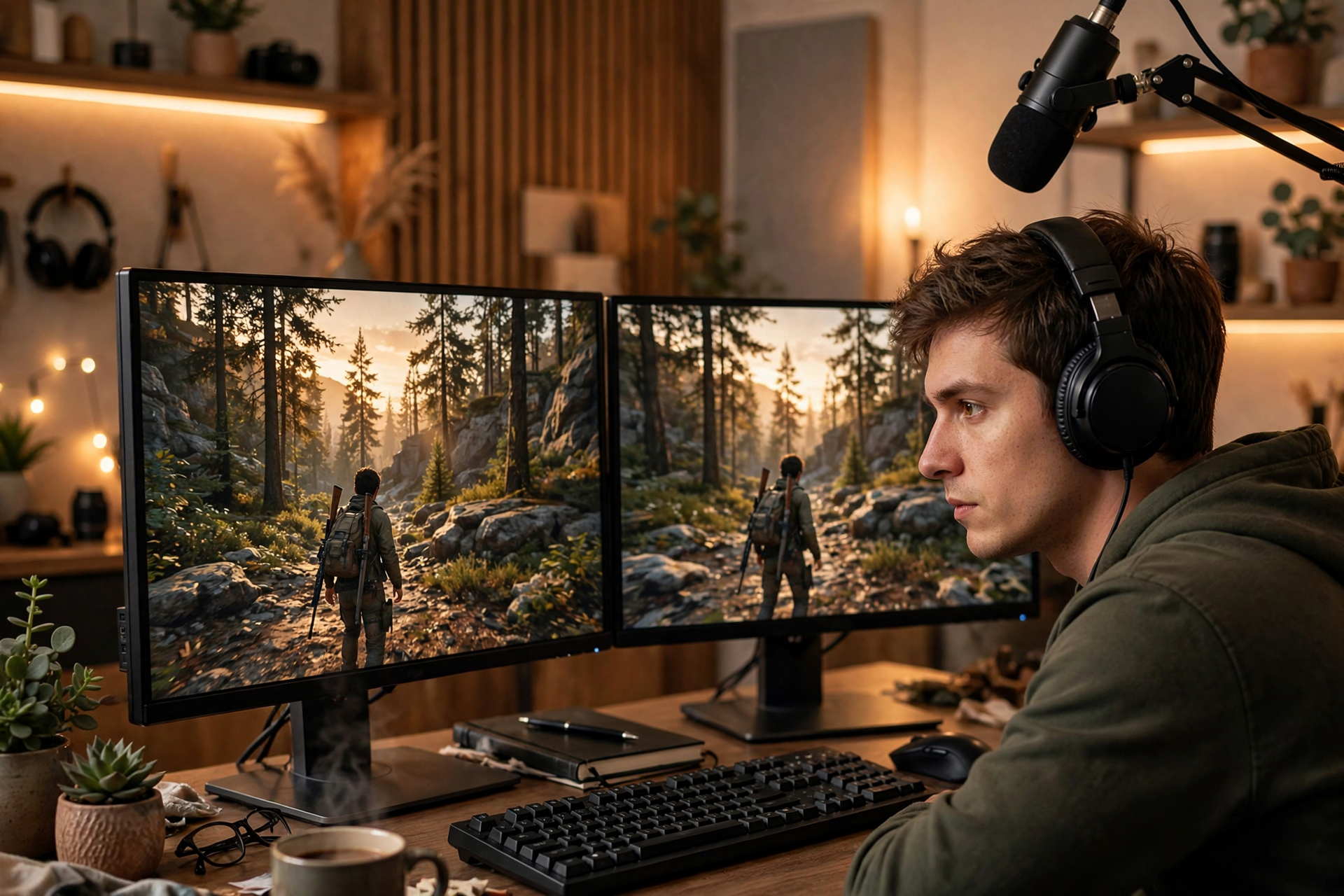
A Twitch clip can be entertaining on its original player and still fail when cropped into a vertical post. Important reactions may sit outside the frame, captions may cover the gameplay, and the clip may begin before viewers understand what is happening. A better workflow starts before you press the clip button: capture moments with the eventual edit in mind.
Choose moments that survive a vertical crop
The best candidates for vertical reuse usually have one clear subject: your face reacting to a decisive play, a visible game event, or a short exchange with chat. Moments that depend on several small areas of the screen are harder to crop and often become confusing on a phone.
Before clipping, ask whether the moment can be understood through one dominant visual and one clear audio thread. A sudden win, surprising fail, strong opinion, or quick story often works better than a long sequence that requires viewers to study the entire layout.
Set up your stream for future cropping
Keep your webcam, alerts, subtitles, and essential gameplay information inside a comfortable central area. Avoid placing important text against the extreme edges of the broadcast, where a vertical crop may remove it. If you use a facecam, test whether it remains recognizable when the frame is narrowed.
Record at the highest practical resolution your computer and connection can handle, but do not sacrifice stream stability for extra pixels. A clean 1080p source with readable audio is more useful than a sharper broadcast filled with dropped frames, compression, or delayed reactions.
Capture enough setup and payoff
A reusable clip needs more than the loudest reaction. Include the sentence, decision, or visual cue that explains why the payoff happened. When you open Twitch’s clip tool, adjust the start and end points so the viewer gets a quick setup, the central moment, and a short reaction afterward.
Do not make every clip as short as possible. A seven-second surprise may need only a beat of context, while a strategic play may need ten or twenty seconds before the result. Remove dead air, menu searching, and unrelated conversation, but leave enough information for someone unfamiliar with the live broadcast to follow along.
Review the crop before publishing
After creating the clip, watch it once in the format your audience is likely to see. Check whether the speaker’s face is visible, the important game action is readable, and the audio starts cleanly. If the original layout makes a vertical version unusable, treat that as production feedback rather than forcing the upload.
Pay special attention to overlapping elements. Chat panels, alerts, subtitles, and facecams can compete for the same narrow space after editing. A clip with fewer visual layers is usually easier to caption and more comfortable to watch than one that tries to preserve every part of the live layout.
Write context that does not give away the payoff
Use a short title or caption that creates a question without explaining the entire outcome. “I thought the run was over” gives viewers a reason to watch, while “I lose the final round here” removes the tension. Keep the wording specific to the moment instead of relying on generic labels such as “crazy clip.”
If you add captions in a separate editor, keep them large enough for mobile viewing and place them where they do not cover the key action. Use line breaks that match your speech, correct names and game terms, and review the first two seconds carefully because that is where viewers decide whether to continue.
Build a simple Twitch-to-short-form workflow
Create a small review queue after each stream rather than exporting every clip immediately. Mark each candidate as gameplay, reaction, story, or chat moment, then choose the few that have the clearest standalone premise. This keeps your short-form library focused and makes editing faster over time.
When you need the source file for later editing, use a reliable Twitch clip downloader, then keep the original clip title, date, game, and a one-line explanation in your content notes. Review the final vertical edit for rights, music, private information, and accidental chat messages before publishing it elsewhere.
Ready to run viewers, chatters, or followers from one dashboard?
View pricing