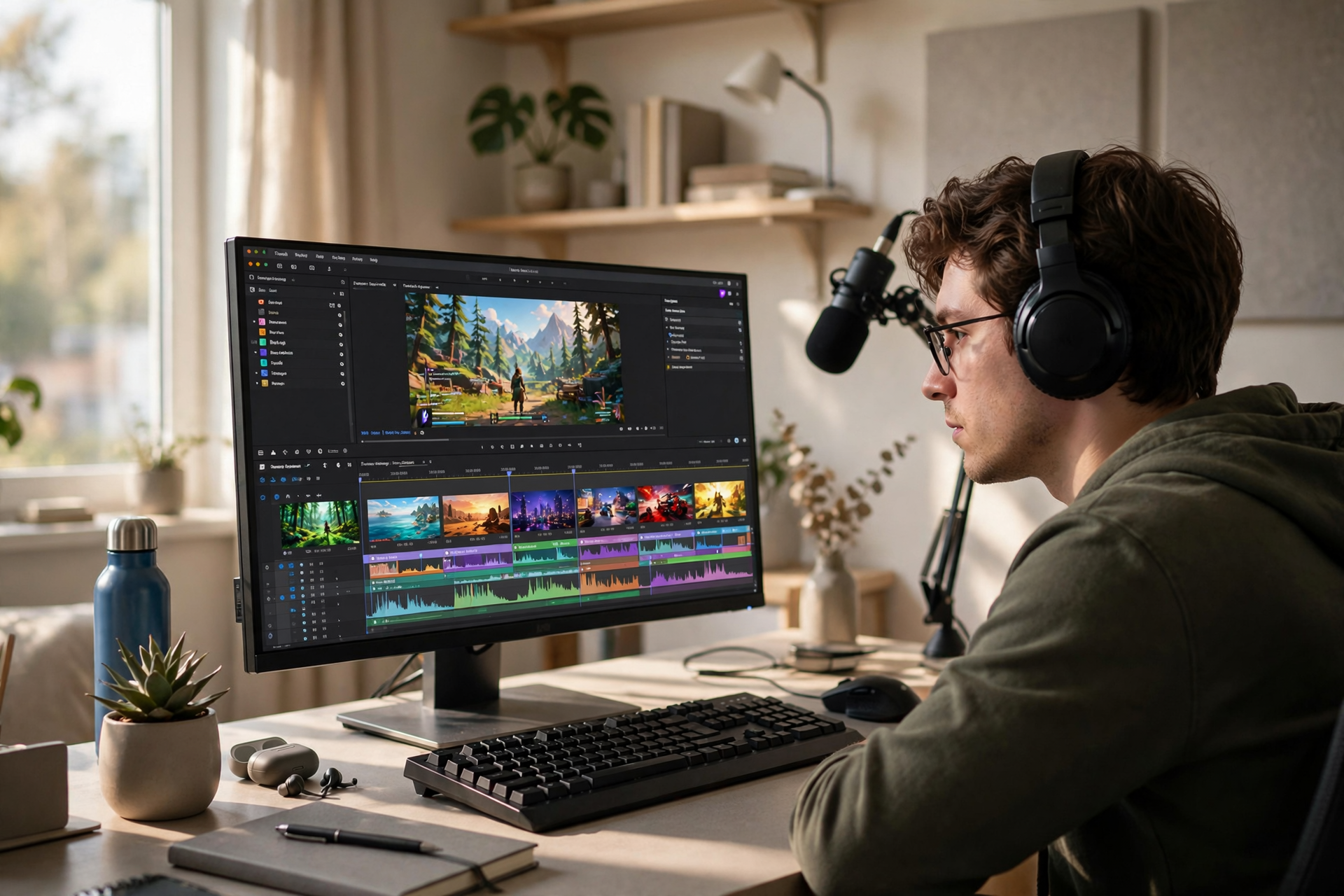
A Twitch clip is more useful when it captures a complete moment rather than a random burst of action. The goal is not to save everything that happens live; it is to identify moments with enough context, emotion, and payoff that someone can understand why they matter.
Decide What Deserves a Clip Before You Go Live
Create a short definition of a highlight for your channel. It might be an unexpected win, a useful explanation, a funny chat exchange, a difficult decision, or a strong reaction that makes sense even to someone who missed the stream. This standard keeps you from collecting clips simply because something was loud.
Write two or three signals on a note beside your setup: a clear setup, a noticeable turning point, and a satisfying response. When a moment contains at least two of these, mark it for review. You can use a quick timestamp note, a stream marker, or a simple keyword in your notes rather than stopping to edit immediately.
Give Each Moment Enough Context
The strongest clip window usually includes the sentence or action that creates the setup, the moment itself, and the immediate reaction afterward. Starting too late makes the clip confusing; ending too early removes the payoff. Watch for the point where a new viewer can answer, “What was happening, and why should I care?”
Avoid beginning with a long explanation that only regular viewers understand. If the setup is necessary, say it clearly while streaming: explain the objective, name the risk, or summarize the argument before the outcome arrives. That makes the original broadcast easier to follow and gives future clips a cleaner opening.
Use a Two-Pass Clipping Workflow
During the broadcast, use a fast capture pass. Save only the rough moment and record a short note such as “boss attempt,” “chat prediction,” or “unexpected bug.” Do not spend live time choosing a perfect title, trimming every second, or watching the clip repeatedly. Your priority is protecting the stream’s momentum.
After the stream, use an editorial pass. Review each saved moment, remove dead air, check that the audio and screen capture are clear, and reject clips that need too much explanation. This separation lets you act quickly when something happens without treating every live moment like a finished upload.
Name Clips So You Can Find Them Later
A clip library becomes difficult to use when every file has an automatic name. Give each highlight a short label based on the event and its appeal, such as “one-health comeback” or “chat chooses the risky route.” Clear labels help you find related moments when planning a video, social post, recap, or themed stream.
Add a simple status to your notes: saved, reviewed, published, or reused. You can also group clips by format, including gameplay, teaching, reaction, community moment, and mistake. The system does not need to be elaborate; it only needs to prevent good moments from disappearing into an unsearchable folder.
Check Whether the Clip Works Without You
Play each candidate as if you are a viewer who has never visited your channel. Can you identify the situation within a few seconds? Is the important action visible? Does the ending feel complete? If the answer is no, adjust the window or discard the clip instead of hoping the missing context will be obvious.
Pay special attention to readable audio. A brilliant reaction is weakened by game sound covering your voice, a clipped microphone, or chat messages moving too quickly to understand. Keep the original version if it has value, but make a cleaner cut when the clip will be shown outside the stream.
Review Your Clips for Programming Ideas
Your clips can show which parts of your stream are easiest to understand and most enjoyable to revisit. Once a week, sort recent highlights by type and look for patterns. You may discover that viewers respond more to challenge attempts, coaching moments, community decisions, or honest reactions than to routine gameplay.
Use those patterns to improve future broadcasts rather than chasing isolated numbers. If challenge clips consistently stand out, design a clearer challenge segment. If explanations perform well, schedule a teaching block. Clipping then becomes a feedback tool for your show, not just a way to preserve moments after you go offline.
Ready to run viewers, chatters, or followers from one dashboard?
View pricing