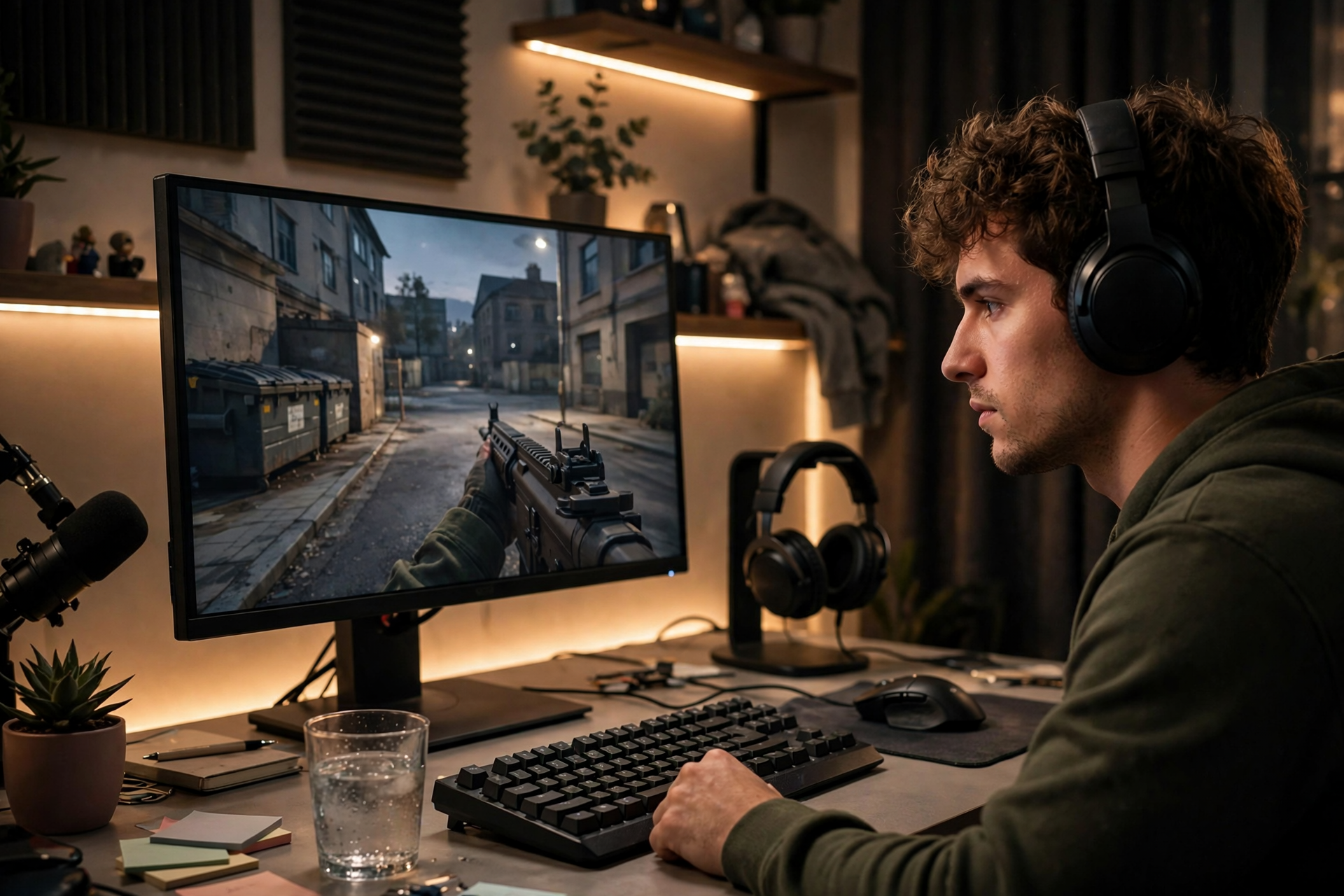
A good Twitch clip is more than a saved piece of video. It is a short introduction to your stream: someone should understand what is happening quickly, feel the payoff, and know why the moment was worth watching. The best clips usually have a clear setup, an immediate reaction, or a result that needs little explanation.
Choose a moment worth clipping
Look for moments with a visible change in energy: a surprising play, a funny mistake, a difficult win, a strong opinion, or a chat interaction that makes sense to someone who was not present. A clip does not need to show your most impressive skill; it needs to deliver a complete idea quickly.
Before clipping, ask whether a new viewer can follow the moment without ten minutes of context. If the answer is no, search for the setup immediately before the payoff and include enough of it to make the reaction understandable. A short clip with a clean beginning is usually more useful than a longer recording that starts halfway through the action.
Create a clip from the Twitch player
While watching your live channel or a saved VOD, move your cursor over the video player and select the Clip button. Twitch opens a clip editor where you can review the selected section, adjust the start and end points, and publish the result. On desktop, Twitch also supports a clip keyboard shortcut when shortcuts are enabled, which can help you capture a fast moment without searching through menus.
On mobile, open the stream or VOD in the Twitch app and use the clip control in the player. The exact button placement can change as Twitch updates its app, so confirm that the preview contains the moment you intended to save before publishing. If the action is moving quickly, create the clip first and refine it afterward rather than waiting so long that the moment becomes difficult to find.
Trim for a fast, understandable payoff
Use the shortest window that preserves the story. Start a little before the key decision, reaction, or punchline, then end soon after the payoff lands. Dead air, menu navigation, repeated explanations, and long pauses make a viewer work harder than necessary. If the moment depends on audio, check that your voice, game sound, and alert volume are balanced enough to understand.
Review the clip as if you have never seen the stream. The first few seconds should establish what is happening, and the final seconds should feel like an ending rather than an accidental cutoff. If you are choosing between two edits, favor the version that reaches its point sooner while still keeping the reaction natural.
Give the clip a useful title
Replace a generic or automatically generated title with a short description that creates curiosity without pretending the clip is something it is not. Specific wording works well: describe the decision, the unexpected outcome, or the question a viewer will answer by watching. Avoid stuffing the title with game names, hashtags, and repeated hype words.
Write for somebody who sees the clip outside your channel. A title such as “The risky save worked at one health” gives more context than “NO WAY!” while still leaving room for the video to deliver the surprise. Keep your wording accurate, especially when the clip involves another player, a serious topic, or a joke that could be misunderstood without context.
Check privacy, music, and channel safety
Do not assume that a live broadcast is automatically safe to distribute everywhere. Review clips for private information, viewer names you did not intend to highlight, personal notifications, unmoderated messages, and accidental camera or microphone exposure. If a clip creates a problem, remove it from your clip management area and avoid reposting the same footage until the issue is resolved.
Pay special attention to copyrighted music, movie audio, sports footage, and other material you do not control. A clip can draw more scrutiny than the original broadcast because it is easy to share and may remain visible long after the stream ends. Use music you have permission to publish, and mute or replace risky sections before adapting the moment for other platforms.
Organize clips for reuse
Treat your clips as a searchable highlight library instead of a pile of links. After each stream, save the strongest moments in a simple list with the date, game or category, topic, and intended use. Mark whether a clip is best for a short vertical edit, a stream recap, a social post, or a future compilation.
When you need a local copy for editing, use a legitimate workflow and keep the original Twitch clip URL with your notes. A Twitch clip downloader can be useful when you have the rights to the footage and need to prepare it for an approved edit. Add captions, crop for the destination, and remove usernames or audio that should not appear in the final version.
Make clipping part of your stream routine
Choose one or two moments to review after every broadcast instead of trying to process everything. A practical routine is to note timestamps during the stream, create the clips after going offline, check each title and privacy detail, then select only the strongest highlight for wider promotion. This keeps clipping from distracting you while you are hosting.
Review performance by quality signals rather than views alone. Notice which openings earn watch time, which moments prompt comments, and which topics bring people back to the live channel. Over several weeks, those patterns can guide your stream segments and help you design more moments that are easy to understand, enjoyable to share, and connected to what you actually want to be known for.
Ready to run viewers, chatters, or followers from one dashboard?
View pricing