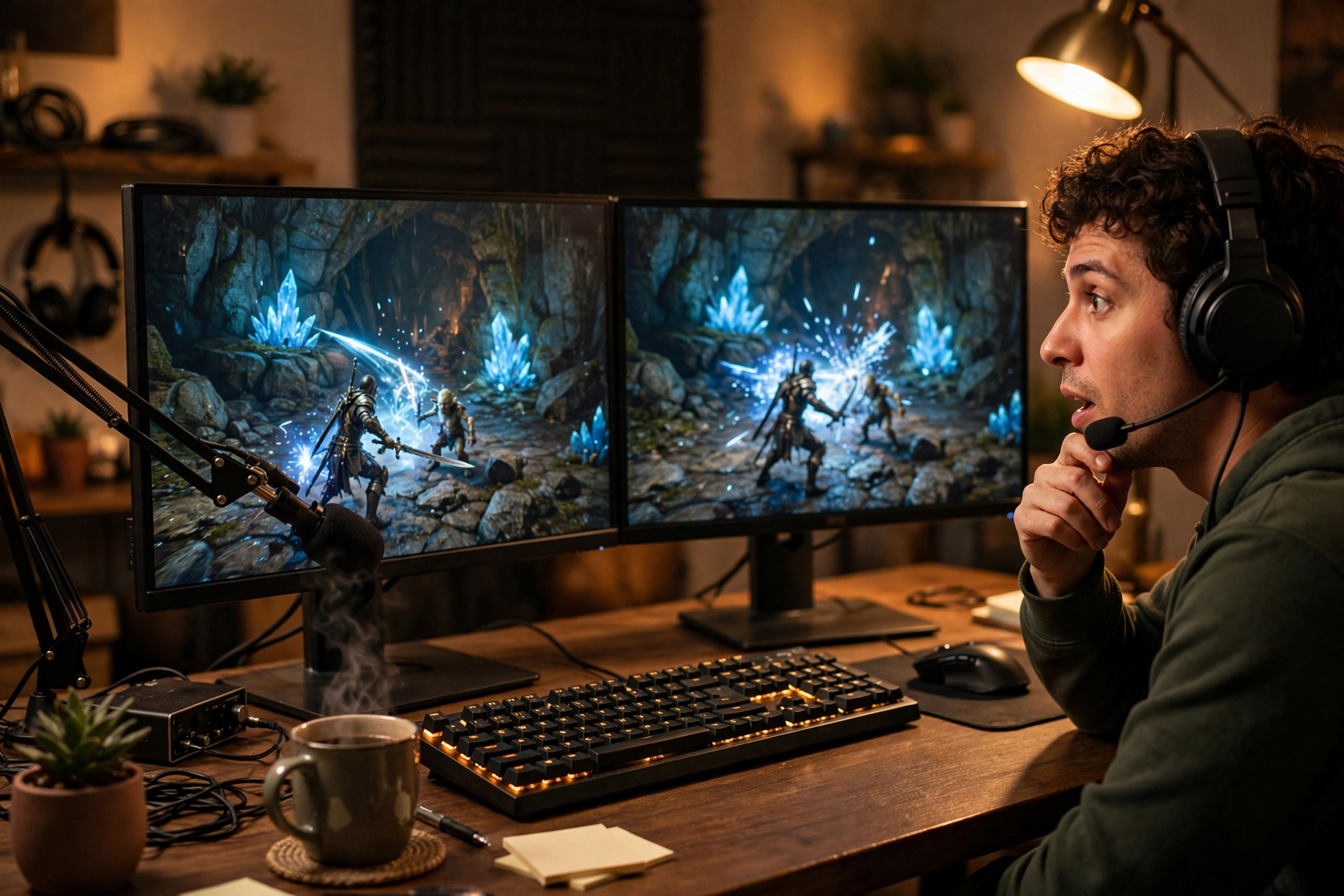
A strong Kick clip usually starts with a moment that is easy to understand without the rest of the broadcast. Whether it is a surprising play, a funny reaction, or a useful explanation, clipping lets you preserve that moment while it is still fresh. The best workflow is quick enough to use during a live show and organized enough to turn each clip into a reusable piece of content.
Check That Your Kick Stream Can Be Clipped
Before going live, confirm that your stream is public, your broadcast is saving correctly if you plan to clip from the replay, and your video and audio are working together. A clip is much less useful when the reaction is silent, the game feed is delayed, or the key moment is hidden by an alert.
Open Kick in a second browser or on your phone and look at the live player once your broadcast begins. Check that the stream loads, the picture is clear, and the player exposes a Clip control. Kick can adjust button placement and labels, so focus on finding the clipping option in the live player rather than relying on one exact screen layout.
Create a Clip While You Are Live
When the moment happens, finish your reaction before reaching for the clip control. Then select Clip in the Kick player or the relevant live controls, review the automatically selected section, and adjust the start and end points if Kick gives you that option. Include enough setup for a new viewer to understand the payoff, but remove long pauses, menu navigation, and unrelated conversation.
Give the clip a short, specific title before publishing it. “Last-second escape with one HP” is more useful than “crazy moment” because it tells viewers what they are about to see. If the native clip tool is unavailable during a particular broadcast, note the timestamp and use your saved replay or a local recording instead.
Use OBS Replay Buffer as a Backup
A local replay buffer protects moments that you miss with Kick’s native tool. In OBS, open Settings, choose Output, enable Replay Buffer, and set a short recording window such as 30 to 90 seconds. Start the buffer before your stream, then assign a hotkey under Settings and Hotkeys for saving the replay.
Test the hotkey before the real broadcast and confirm where OBS saves the file. Use a duration that captures the setup and payoff without creating unnecessarily large videos. Keep the hotkey away from common game controls, and tell your moderators how to mark timestamps in chat so you have a second way to find moments after the show.
Make the Clip Understandable Without Context
Review every clip as if you have never watched the channel. The first seconds should establish the situation, the main action should remain visible, and the ending should feel complete rather than cutting off your reaction. If the clip depends on chat, leave enough of the chat panel visible to explain the exchange, but crop distractions when you edit a local recording.
Keep the original stream audio clear and balance it against game sound. Remove accidental private information, license-restricted music, personal messages, or unfinished overlays before sharing a saved file elsewhere. A clean clip is easier for viewers to trust, understand, and remember than a technically exciting moment covered by noise or clutter.
Publish and Organize Your Best Kick Clips
Publish the native Kick clip when it is ready, then save a simple record of its date, stream category, title, and moment. Use consistent naming in your local folders, such as “2026-04-12_ranked_overtime,” so you can find the source later. Do not publish every clip you make; keep the strongest moments and discard near-duplicates.
For clips you also share on other platforms, check each platform’s aspect-ratio and duration requirements before exporting. Keep the original file, a clean vertical or square version when appropriate, and the Kick clip URL in the same folder. If you are tracking performance, compare watch time, completion rate, comments, and follows rather than judging a clip only by its first few hours of views.
Build a Simple Clipping Routine
During a stream, use a lightweight system: save the moment immediately, write a two- or three-word note, and return your attention to the broadcast. Afterward, spend 10 minutes reviewing saved clips and selecting one or two worth publishing. This keeps clipping from interrupting your hosting and prevents a large backlog of unlabeled files.
Review your results once a week and look for patterns in the moments people finish, replay, or discuss. You may discover that short reactions outperform long explanations, or that clips from a particular game mode are easier to understand. Use those findings to plan better stream segments, then measure future clips against your own baseline and, when useful, review your Kick clip views data without treating raw view count as the only success metric.
Ready to run viewers, chatters, or followers from one dashboard?
View pricing